
Permissions
Request only the browser capabilities and website access your product needs. ChromeShip validates each value before it reaches the manifest.
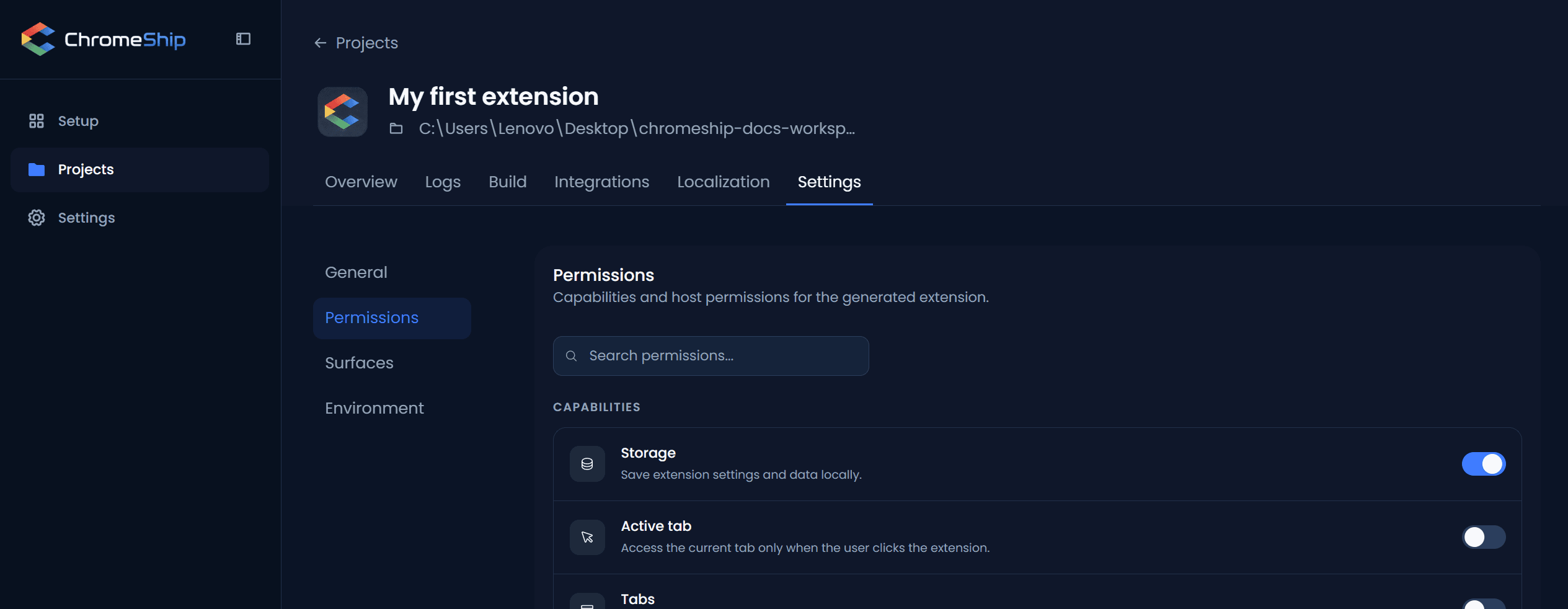
Chrome permissions
Add capabilities from Settings > Permissions. Invalid names are rejected, and surface dependencies such as Side Panel are kept consistent.
Common permissions
| Permission | What it enables |
|---|---|
storage | Persist user data, settings, and state with chrome.storage |
tabs | Read tab URLs, create and close tabs, move tabs between windows |
scripting | Inject scripts and CSS into pages programmatically |
activeTab | Access the active tab when the user invokes the extension — no install-time warning |
sidePanel | Open and control the side panel surface |
identity | OAuth authentication via chrome.identity.launchWebAuthFlow |
identity.email | Read the user's Google account email (with consent) |
notifications | Push OS-level notifications from background or any surface |
alarms | Schedule periodic background tasks (replaces setInterval in MV3) |
offscreen | Run DOM-dependent APIs (clipboard, audio) from a hidden document |
Host permissions
Grant access to specific websites with URL patterns. ChromeShip adds them to host_permissions in the manifest.
https://api.example.com/*    // all paths on a specific domain
https://*.example.com/*    // all subdomains
<all_urls>                 // every site (Chrome Web Store review required)
Optional permissions
Permissions in the manifest are requested at install time. For permissions users should grant on demand, use chrome.permissions.request() at runtime — ChromeShip does not manage optional permissions. Declare them manually in the manifest under optional_permissions.
Chrome Web Store review
Permissions affect both the install prompt and store review. Prefer activeTab when access should begin with a user action, and narrow host patterns to the websites the feature actually supports.
Next
Choose permissions that match your surfaces. Build and publish when ready. See the content scripts page for host permission examples.