
Build & Publish
Turn the current production configuration into a validated, versioned ZIP ready for store submission.
Set the version
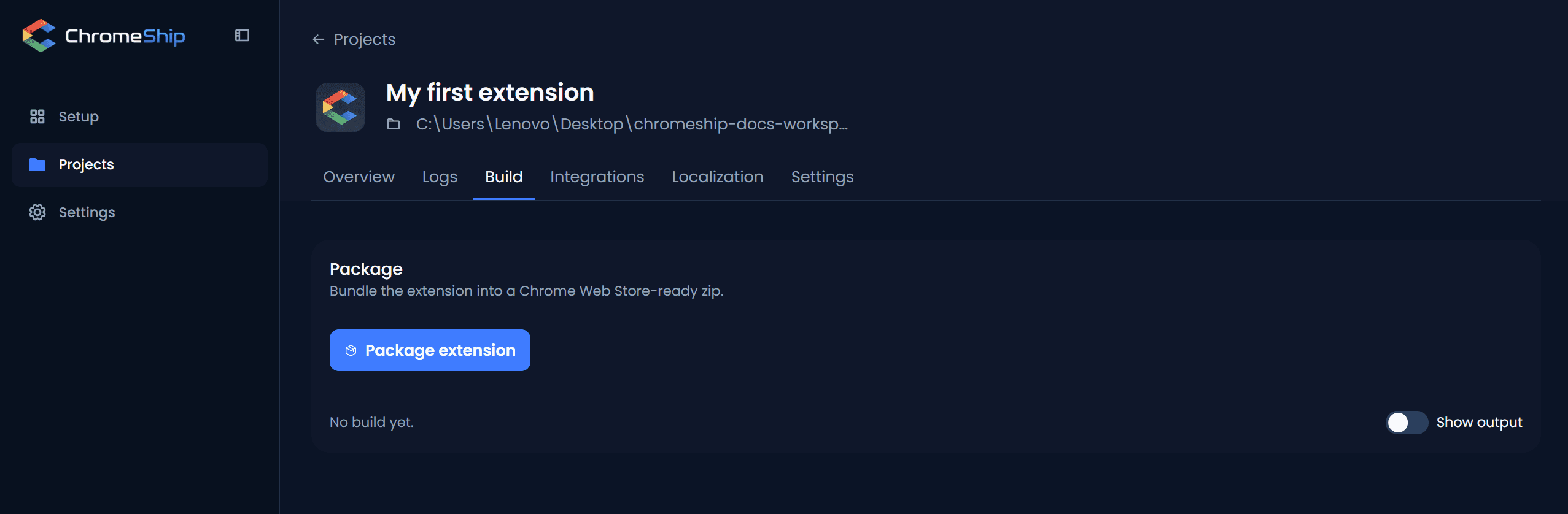
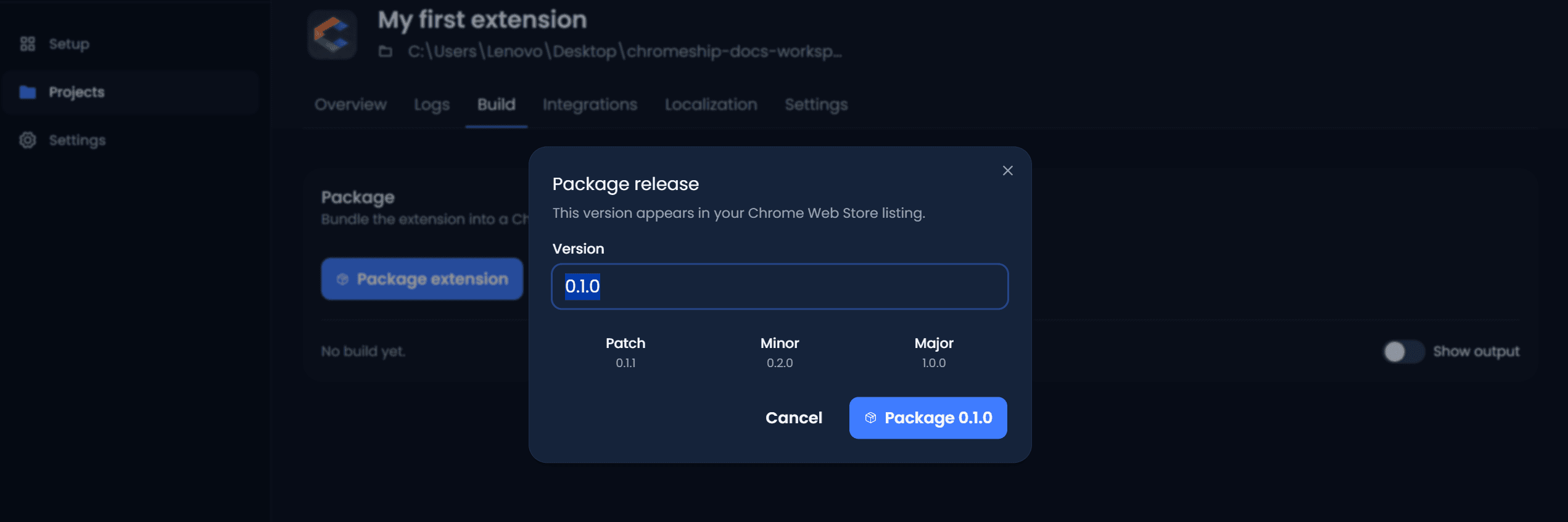
Open Build and click Package extension. Choose the next semantic version in the release dialog; the version only changes after you confirm the package.
Package the ZIP
Package from the Studio, or use the project ID or slug with the CLI:
chromeship project build --project my-extensionChromeShip stores the ZIP in .chromeship/builds/. The filename includes the project slug, version, and build timestamp. Building the same version replaces only that version's previous artifact.
Build diagnostics show:
- Total bundle size — keep it under Chrome Web Store limits.
- Largest generated files — see which surfaces or chunks dominate the bundle.
- Output file count — how many files were produced.
Protected builds
The production build runs from a clean output directory. If it fails, ChromeShip restores the last valid development output from .dist.chromeship-backup, so a failed package does not unload the extension being tested.
Build process
During build, ChromeShip:
- Injects production environment values into the bundle.
- Restores production-only manifest behavior, including the new-tab override.
- Strips localhost host permissions and adds the Supabase production URL if configured.
- Validates permissions against Chrome Web Store policies.
Dev build overlay
Managed Chromium reports development rebuild state directly in the page. When a rebuild fails, open the error state for the message or switch to Logs for complete output. This development UI is removed from production ZIPs.
Chrome Web Store checklist
- Set a meaningful version number.
- Review permissions — keep them minimal.
- Verify icons (16, 32, 48, and 128 pixels).
- Extract the ZIP and load it unpacked in a clean Chrome profile for a final production check.
- Confirm production environment values are set for every required variable.
- Upload to the Chrome Web Store Developer Dashboard.
Next steps
Set production environment variables — every secret and public key your build needs. Wire up Supabase if you haven't yet, or jump to the Stripe + Auth Starter to add payments.